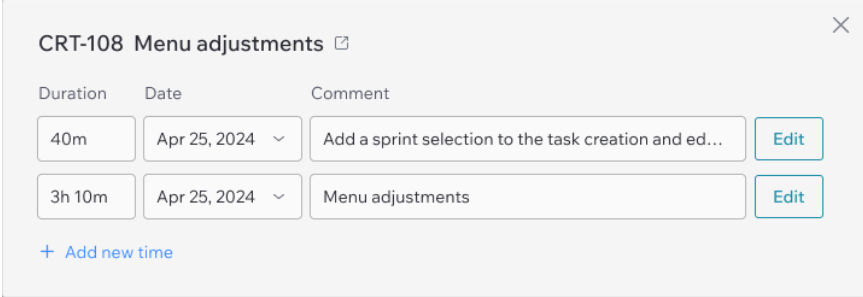
Viewing and editing time deductions for an issue per day
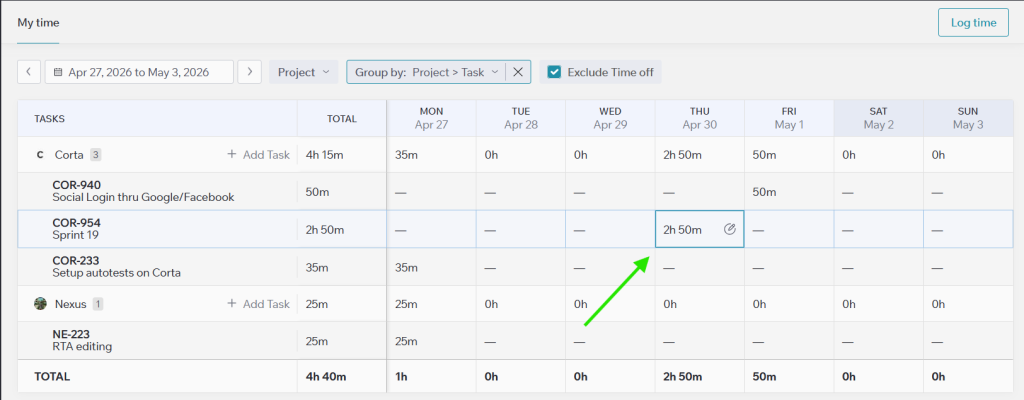
This modal appears when you click a table cell for a task where you logged time multiple times on the same day (e.g., 1 hour from 10 AM to 11 AM and 2 hours from 1 PM to 3 PM).
What you can do in this modal
- Open the task – click the button next to the task name (opens the task in a new tab).
- Edit a time entry directly – change the Duration, Date, or Comment right in the list.
- Change the date – click the Date field, then select a new date in the calendar.
- Open full edit mode for a specific entry – click the Edit button next to that entry.
- Add a new time entry – click the Add new time button below the list.